
Getting Started with the Pharmacy Portal
Learn how to log in, navigate the dashboard, and find your way around the Avalon Health pharmacy interface.
Before You Begin
You need an active Avalon Health pharmacy account to follow this guide. If you do not have credentials yet, contact your pharmacy manager or facility administrator to have an account created for you.
Provider-Facing Only
The pharmacy portal is for healthcare providers (pharmacists and pharmacy staff) only. If you are a patient looking to view your prescriptions or request refills, use the patient portal instead.
What You'll Learn
By the end of this guide, you will know how to:
- Log in to the pharmacy portal securely
- Understand the dashboard layout, pending queues, and alerts
- Navigate between prescriptions, inventory, POS, and reports
- Configure your profile and security settings
Logging In
Open the Pharmacy Portal
Open your web browser and navigate to the Avalon Health pharmacy portal URL provided by your administrator. This is typically in the formatpharmacy.avalonhealth.cloudor a custom domain configured for your facility.
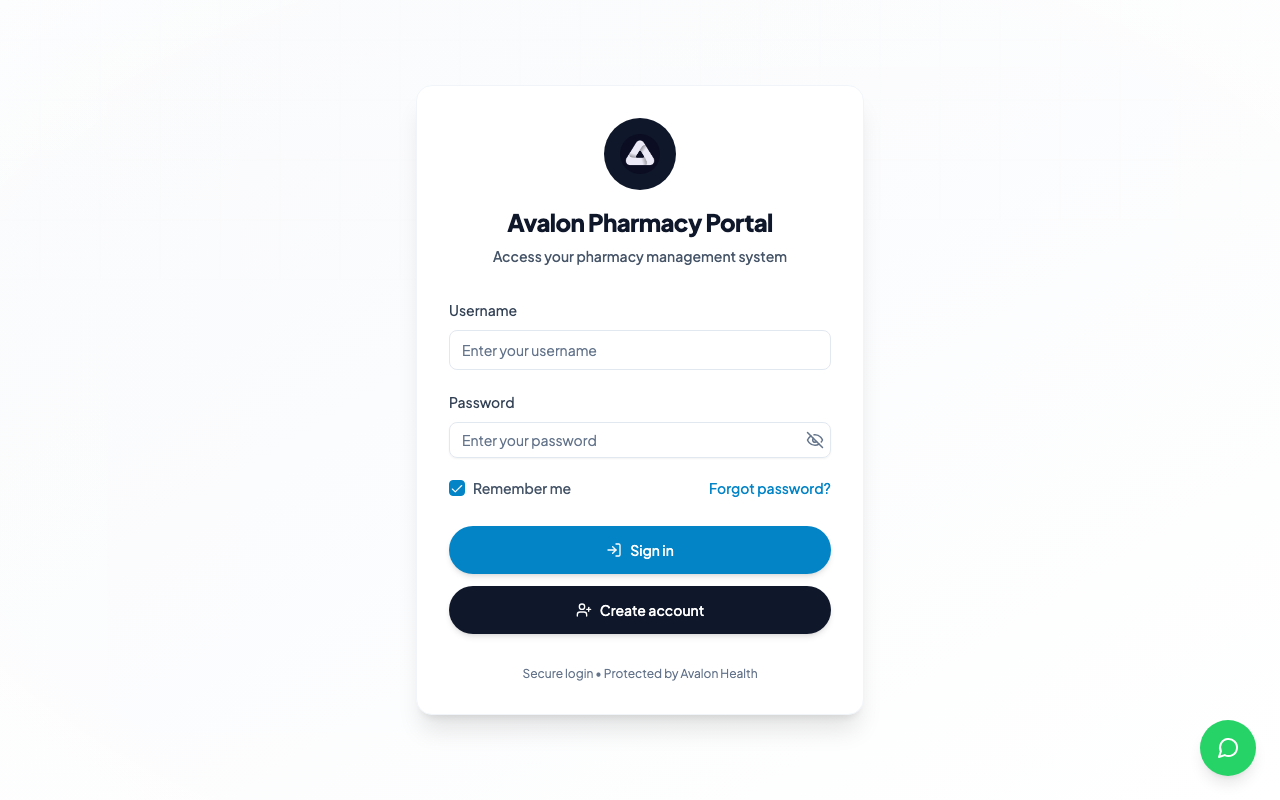
The login page displays the Avalon Health logo and a sign-in form. Use a modern browser such as Chrome, Firefox, Safari, or Edge for the best experience. The portal is fully responsive and works on tablets as well, which is useful for pharmacists working at the dispensing counter.
Dashboard Overview
The pharmacy dashboard gives you a real-time view of your dispensary's status. Here is what each section of the dashboard shows:
1Sidebar Navigation — Access all major sections: Prescriptions, Dispensing, Verification, Inventory, Walk-In, POS, Controlled Substances, Reports, and Settings.
2Top Bar — Shows the current date, search bar for quick prescription or patient lookups, notification bell for alerts, and your profile avatar.
3Quick Actions — Buttons for common tasks like starting a new dispensing session, processing a walk-in prescription, or opening the POS terminal.
4Pending Prescriptions — A count and list of prescriptions received from clinics and hospitals that are awaiting dispensing. Sorted by priority and time received.
5Verification Queue — Prescriptions that have been dispensed by a technician and are awaiting final pharmacist verification before being handed to the patient.
6Alerts Panel — Critical notifications including low-stock warnings, approaching expiry dates, and controlled substance reconciliation reminders.
Navigating the Interface
The sidebar on the left is your primary navigation tool. It organises the pharmacy portal into logical sections for your daily workflow:
Prescriptions
View incoming prescriptions from clinics and hospitals
Verification
Clinical checks and pharmacist sign-off queue
Inventory
Stock levels, reorder alerts, supplier management
Reports
Dispensing analytics, stock movement, and financial summaries
Keyboard Shortcut
Press Ctrl + K (or Cmd + K on Mac) to open the global search. This lets you quickly find prescriptions, patients, or medications without navigating through menus.
First-Time Setup
When you first log in, there are several things worth setting up right away:
- Change your password — Go to Settings > Security and update the temporary password provided by your administrator.
- Enable two-factor authentication — If not already enforced by your facility, enable 2FA for an additional layer of security. This is especially important for controlled substance access.
- Verify your licence details — Ensure your pharmacy licence number, expiration date, and registration body are correct. These details appear on dispensing labels and are used for regulatory compliance.
- Set notification preferences — Choose whether you want in-app, email, or SMS notifications for new prescriptions, low-stock alerts, and verification queue updates.
- Review default dispensing labels — Go to Settings > Labels to review and customise the label templates used when printing dispensing labels for patients.
Session Security
For security, the pharmacy portal will automatically log you out after 15 minutes of inactivity. This shorter timeout protects sensitive prescription and controlled substance data. Always lock your workstation when stepping away from the dispensing counter.