
Getting Started with the Hospital Portal
Learn how to log in, navigate the hospital dashboard, understand department-based access, and find your way around the Avalon Health hospital interface.
Before You Begin
You need an active Avalon Health hospital account to follow this guide. Hospital accounts are separate from clinic accounts. If you do not have credentials, contact your facility's IT administrator or the hospital systems team.
What You'll Learn
By the end of this guide, you will know how to:
- Log in to the hospital portal and select your department
- Understand the hospital dashboard layout and real-time metrics
- Navigate between hospital modules using the sidebar
- Manage your password, security, and notification settings
Logging In
Open the Hospital Portal
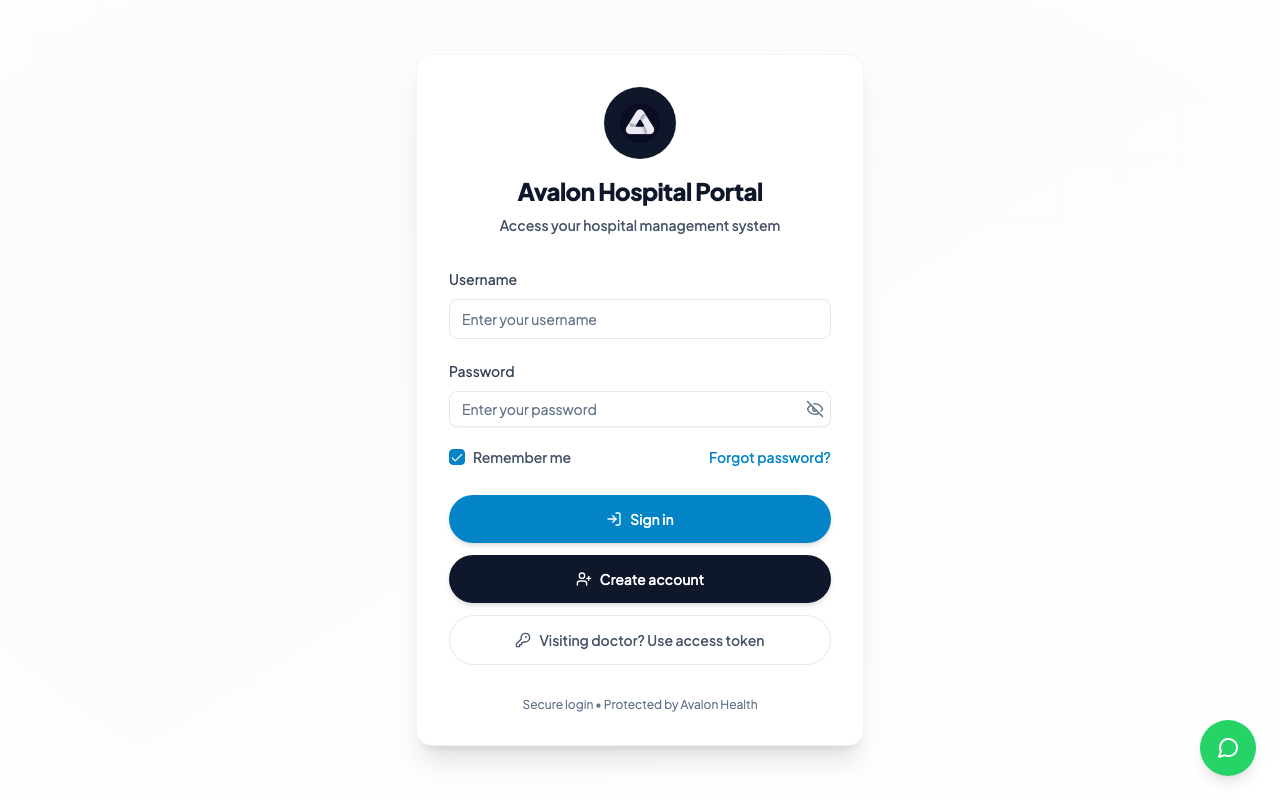
Open your web browser and navigate to the Avalon Health hospital portal URL provided by your administrator. Hospital portals typically use the formathospital.avalonhealth.cloudor a custom domain configured for your facility.
The hospital portal supports Chrome, Firefox, Safari, and Edge. For the best experience with real-time features like bed management boards and emergency dashboards, use the latest version of your browser.
Dashboard Overview
The hospital dashboard is your operational command centre. It provides a real-time overview of your facility's status across all departments. Here is what each section of the dashboard shows:
1Sidebar Navigation — Access all hospital modules: Patients, Inpatient, Emergency, Laboratory, Radiology, Nursing, Theatre, Pharmacy, Billing, Reports, and Settings.
2Top Bar — Shows the current date and time, department selector, global search, notification bell with unread count, and your profile avatar.
3Quick Actions — Buttons for common tasks like admitting a patient, starting triage, ordering labs, or creating a prescription.
4Bed Occupancy Summary — A colour-coded overview of bed availability across wards. Green indicates available beds, amber indicates beds pending discharge, and red indicates full wards.
5Emergency Queue — Real-time view of patients currently in the emergency department, sorted by triage priority. Critical patients appear at the top in red.
6Department Activity — Summary cards showing today's admissions, discharges, scheduled surgeries, and pending lab results.
Navigating the Interface
The sidebar on the left organises the hospital portal into modules. The hospital portal has significantly more modules than the clinic portal, reflecting the broader scope of hospital operations:
Patients
Search, register, and manage patient records and demographics
Inpatient
Admissions, bed management, ward assignments, and discharge
Emergency
Triage, emergency workflows, and trauma protocols
Laboratory
Test ordering, specimen tracking, and results management
Radiology
Imaging orders, PACS integration, and radiology reports
Nursing
Rounds, task management, vitals charting, and shift handover
Theatre
Surgery scheduling, operating rooms, and pre/post-op workflows
Pharmacy
Hospital dispensing, verification queue, and ward medications
Billing
Invoices, encounter billing, claims, and credit notes
Keyboard Shortcut
Press Ctrl + K (or Cmd + K on Mac) to open the global search. In the hospital portal, this searches across patients, bed numbers, ward names, and department staff.
First-Time Setup
When you first log in to the hospital portal, complete these setup steps:
- Change your password — Go to Settings > Security and replace the temporary password provided by your administrator with a strong personal password.
- Verify your department assignments — Confirm that you are assigned to the correct departments. If a department is missing, contact your administrator.
- Set notification preferences — Configure which alerts you receive: critical lab results, bed availability changes, emergency escalations, and shift handover reminders.
- Review your profile details — Ensure your name, professional registration number, specialisation, and contact details are correct. These appear on clinical documents, prescriptions, and discharge summaries.
- Set your default department — Choose the department you work in most often. This will be pre-selected when you log in, saving you a step each day.
Session Timeout
For security, the hospital portal automatically logs you out after 30 minutes of inactivity. In clinical areas, save your work frequently. The system auto-saves draft clinical notes every 60 seconds, but forms in progress (such as new admission forms) must be submitted before the session expires.