
Getting Started with the Patient Portal
Learn how to register for the patient portal, log in, navigate the dashboard, and set up your profile.
What is the Patient Portal?
The Avalon Health patient portal is your personal health hub. It gives you 24/7 access to your medical records, prescriptions, appointments, and billing information. You can book appointments, request prescription refills, and communicate with your healthcare providers, all from your browser.
Patient Portal is Separate
The patient portal is at patient.avalonhealth.cloud. This is a separate application from the provider portal used by clinic, hospital, and pharmacy staff. If you are a healthcare provider, these tutorials are not for you. Go back and select "Healthcare Provider" on the login page.
What You'll Learn
By the end of this guide, you will know how to:
- Create your patient portal account
- Log in and navigate the home dashboard
- Understand the dashboard layout and quick actions
- Complete your health profile and set notification preferences
Creating Your Account
Follow these steps to register for the patient portal:
Open the Patient Portal
Open your web browser and navigate to the Avalon Health patient portal atpatient.avalonhealth.cloud. The portal works on any modern browser on desktop, tablet, or mobile. You do not need to install any software.
On the welcome page, you will see a sign-in form and a "Create Account" link underneath. If you already have an account, skip ahead to the Login section. Otherwise, click "Create Account" to start registration.
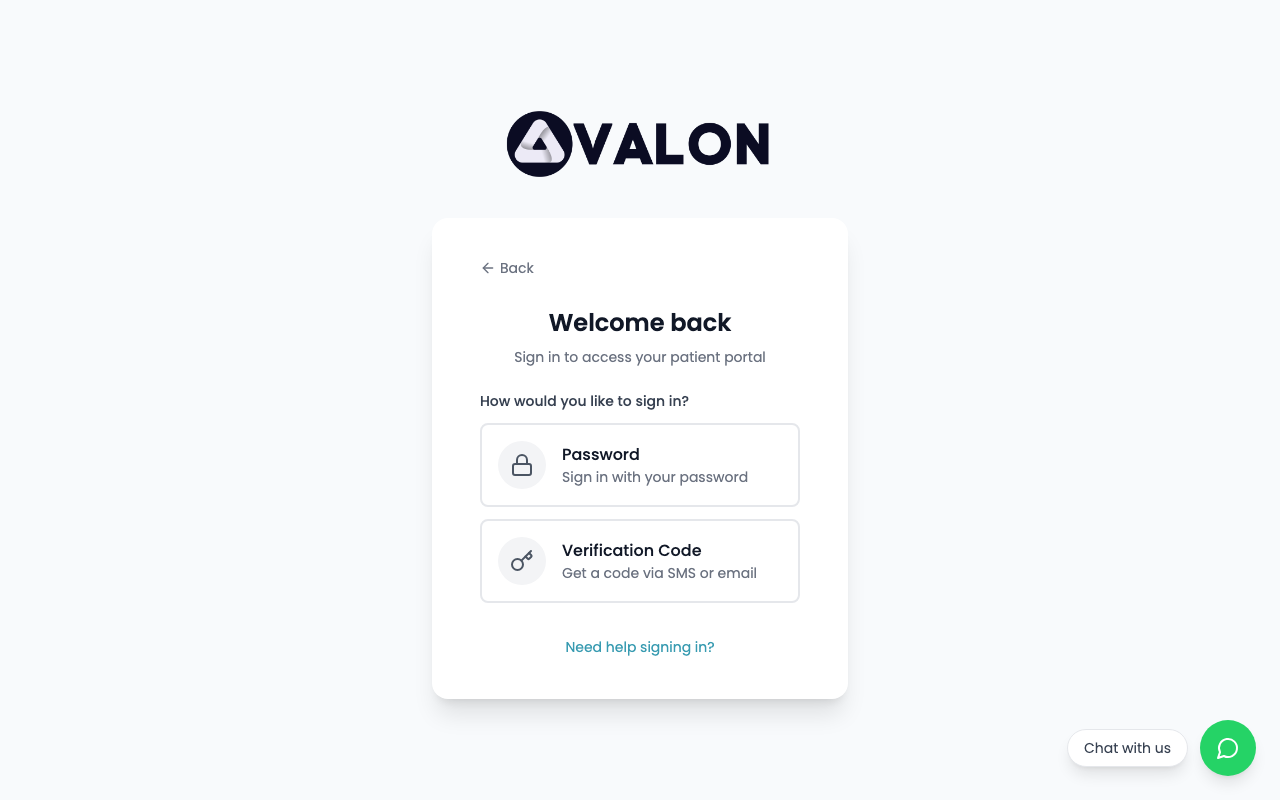
Logging In
If you already have an account, here is how to log in:
Go to the Login Page
Navigate topatient.avalonhealth.cloudin your browser. The login page shows the Avalon Health logo and a sign-in form.
Your Home Dashboard
The home dashboard is your central view of your healthcare activity:
1Navigation Bar — Access Appointments, Records, Prescriptions, Payments, and Settings. The notification bell shows unread messages and alerts.
2Upcoming Appointments — Shows your next scheduled appointments with doctor name, facility, date, and time. Click to view details or cancel.
3Active Prescriptions — Current medications and their refill status. Shows if a prescription is ready for collection or if a refill is due.
4Quick Actions — Buttons for booking a new appointment, requesting a prescription refill, viewing test results, and making a payment.
Navigating the Portal
The navigation bar at the top gives you access to all sections:
Health Records
View your medical history, test results, diagnoses, and documents
Appointments
Browse providers, book appointments, and manage bookings
Notifications
Messages from providers, appointment reminders, and prescription alerts
Settings
Profile, password, notification preferences, privacy controls, and family members
Add to Home Screen
For quick access on your phone, add the patient portal to your home screen. On iPhone, open the portal in Safari, tap the Share button, and select "Add to Home Screen". On Android, tap the browser menu and select "Add to Home Screen". This creates an app-like shortcut that opens the portal in full-screen mode.
Keep Your Login Secure
Your patient portal account provides access to your medical records, prescriptions, and billing information. Do not share your password with anyone. If you use a shared or public computer, always log out when finished and do not save your password in the browser.